


Give Your Old Computer New Life: A Guide to Installing ChromeOS Flex
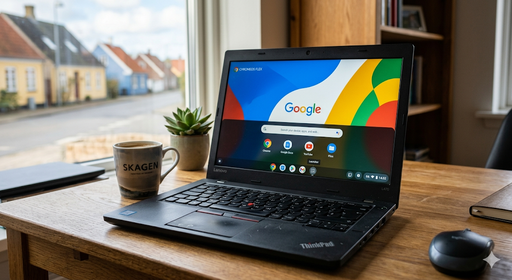
chromeos-flex-on-old-computers – Do you own an old laptop or desktop gathering dust because Windows has become too heavy and slow? You don’t have to throw it away. With ChromeOS Flex, you can transform your aging hardware into a lightning-fast, modern machine.
In this guide, we cover everything you need to know about installation, hardware requirements, and why this operating system is the perfect solution for reviving old IT equipment.
What is ChromeOS Flex?
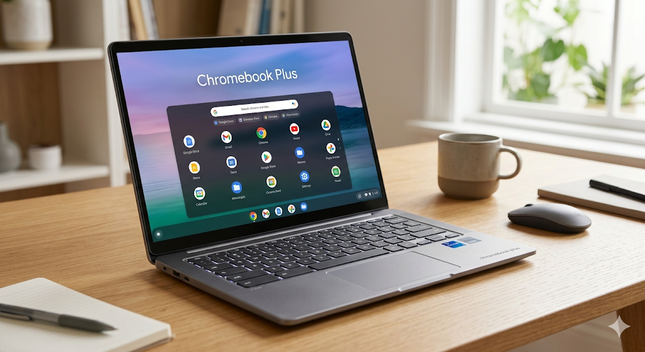
ChromeOS Flex is a free, cloud-based version of the well-known operating system found on Chromebooks. Google developed this version specifically to run on existing PC and Mac hardware. It focuses on speed, security, and simplicity by running most tasks directly through the browser.
Benefits of Switching to ChromeOS:
- Fast Boot Times: Your computer starts up in seconds.
- High Security: Built-in protection against viruses and malware.
- Low Resource Consumption: Ideal for older processors and limited RAM.
- Sustainability: Extend the lifespan of your hardware and reduce e-waste.
System Requirements: Can Your Computer Run It?
chromeos flex on old computers – Before starting your software installation, ensure your device meets the minimum requirements:
- Processor: Intel or AMD x86-64-bit compatible device.
- RAM: At least 4 GB.
- Storage: Minimum 16 GB of free space.
- USB Port: For the installation media.
- BIOS: Full administrator access to change the boot order.
Note: Hardware older than 2010 may face challenges with drivers for Wi-Fi or graphics. Google maintains a list of certified models on their official website.
Step-by-Step Guide: How to Install ChromeOS Flex
chromeos flex on old computers – Follow these simple steps to upgrade your computer hardware with a new operating system.
1. Prepare the USB Drive
You will need a USB flash drive with at least 8 GB of space.
- Open the Chrome browser on a working computer.
- Install the “Chromebook Recovery Utility” extension from the Chrome Web Store.
- Launch the extension, click “Get Started,” and select “Select a model from a list.”
- Choose Google ChromeOS Flex as the manufacturer and product.
2. Create the Installation Media
Insert your USB drive and follow the instructions in the utility. This will format the drive and download the necessary system files.
3. Boot from USB
Insert the USB drive into the old computer you wish to upgrade.
- Turn on the computer and quickly press your boot menu key (typically F12, F9, or Esc).
- Select your USB drive as the primary boot device.
4. Installation and Configuration
Once the ChromeOS logo appears, you will have two choices:
- Try it first: Run the system directly from the USB drive without deleting your files.
- Install ChromeOS Flex: This will erase everything on the hard drive and install the system permanently.
We recommend testing it first to ensure your keyboard, touchpad, and wireless network are functioning correctly.
Optimizing Your New “Chromebook”
Once the installation is complete, your computer is now a high-performance machine for internet use. To get the best experience, you should:
- Log in with your Google Account: This synchronizes all your bookmarks and passwords.
- Use Web Apps (PWA): Since ChromeOS Flex does not support Android apps (Play Store), use web versions of tools like Microsoft Office, Spotify, and Zoom.
- Check Cloud Storage: Use Google Drive for your files to save local hard drive space.
Is ChromeOS Flex the Right Choice for You?
If your primary needs are web browsing, streaming, and office work, the answer is a resounding yes. It removes the frustrations of slow Windows updates and provides a stable platform for daily tasks. It is the ultimate way to optimize your home office without purchasing new equipment.