

How to Install Ubuntu 26.04 LTS: The Ultimate Step-by-Step Guide
How to install Ubuntu 26.04 – Is your computer running slow, or do you simply want full control over your operating system without constant update pop-ups and expensive licensing fees? Then it is time to switch to Ubuntu 26.04 LTS.
Ubuntu is one of the world’s most popular, stable, and secure open-source operating systems. In this comprehensive guide, we will show you exactly how to perform a clean installation of the brand-new Ubuntu 26.04.
Prerequisites: What You Need Before Starting
Before we begin to install Ubuntu 26.04, make sure you have the following ready:
- A USB flash drive (at least 8 GB).
- A computer with a stable internet connection.
- Important: A complete backup of your important files if you are installing this on a computer with existing data.
Step 1: Download Ubuntu 26.04 ISO and Create a Bootable USB
First, you need to download the operating system itself and transfer it onto your USB drive so your computer can boot from it.
- Go to the official Ubuntu website and download the Ubuntu 26.04 LTS ISO file.
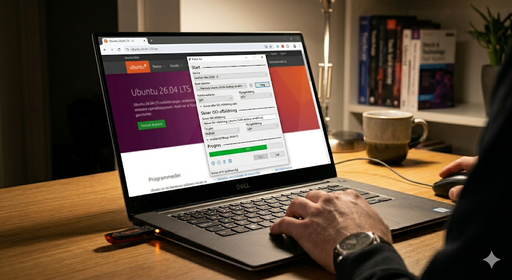
- Download a free USB flashing tool such as Rufus (for Windows) or BalenaEtcher (for Mac/Linux).
- Insert your USB drive into your computer, open the flashing software, select the downloaded ISO file, and click “Flash” or “Start”. And wait until it is finished
Step 2: Boot Your Computer From the USB Drive
Now, we need to make your computer read from the USB flash drive instead of your regular hard drive.
- Shut down your computer completely.
- Turn it back on and immediately start tapping your computer’s Boot Menu key (typically F12, F11, F9, or Del depending on your motherboard brand like ASUS, Lenovo, Dell, or HP).
- Select your USB drive from the boot list and press Enter.
Step 3: The Ubuntu 26.04 Installation Process
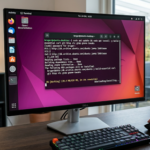
How to install Ubuntu 26.04 – Once your computer boots from the USB drive, you will be greeted by the Ubuntu welcome screen and its modern, streamlined installation wizard.
- Select Language: Choose your preferred language and click Next.
- Keyboard Layout: Ensure your layout matches your physical keyboard so all special characters work correctly.
- Type of Installation: We highly recommend choosing a “Normal installation”. Also, check the box that says “Install third-party software for graphics and Wi-Fi hardware”, as this ensures your drivers work out of the box.
- Installation Type (Disk Allocation): * If you want to wipe everything and only run Ubuntu, select “Erase disk and install Ubuntu”.
- If you want to keep your current Windows installation, select “Install Ubuntu alongside Windows” (Dual-boot).
- Create User Account: Enter your name, your computer’s name, and choose a strong password.
- Sit Back and Relax: Click “Install Now”. The process usually takes about 10–20 minutes depending on your com
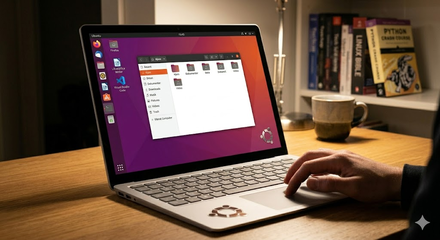
When the installation is complete, the system will prompt you to remove the USB drive and restart your PC. After that, you are ready to use your brand-new, lightning-fast operating system!
FAQ – Frequently Asked Questions About Ubuntu 26.04
Is Ubuntu 26.04 free to use?
Yes, Ubuntu is 100% free to download, use, and update – both for personal use and for businesses.
What does “LTS” stand for in Ubuntu 26.04 LTS?
LTS stands for Long Term Support. This means that this version is extremely stable and will receive free security updates and support for at least 5 years from its release date.
Can I run Windows programs on Ubuntu?
Many Windows programs have excellent alternatives on Linux (e.g., LibreOffice instead of Microsoft Office). If you absolutely must run a specific Windows-only application, you can often achieve this by using tools like Wine or Bottles.
How much disk space does Ubuntu 26.04 require?
You need at least 25 GB of free disk space as a minimum, but we recommend at least 40 GB or more to leave plenty of room for your personal files and applications.