






How to Use GUFW Firewall on Ubuntu – Installation, Setup and Rules
Want to protect your Ubuntu computer with a user-friendly firewall? GUFW (Graphical Uncomplicated Firewall) is the perfect choice for personal users who want easy control over their network traffic without having to master the command line. In this guide, you’ll learn everything about how to install GUFW on Ubuntu, configure it, and create your own custom rules.
Table of Contents
- What is GUFW?
- Why Use a Firewall on Ubuntu?
- System Requirements and Preparation
- Install GUFW on Ubuntu
- How to Open and Use GUFW
- Enable and Disable the Firewall
- Create Rules in GUFW
- Profiles in GUFW
- Tips for Personal Users
- Troubleshooting
- Conclusion
1. What is GUFW?
GUFW is a graphical user interface for UFW (Uncomplicated Firewall), which is itself a simplified frontend for iptables — Linux’s powerful network filtering tool. GUFW allows you to manage all incoming and outgoing network traffic through an intuitive graphical interface, without needing to know complex terminal commands.
GUFW is open source, lightweight, and actively maintained. It is the default tool for firewall management on Ubuntu Desktop and is ideal for:
- Home users and individuals
- Students and developers
- Anyone who wants basic network security on Linux
2. Why Use a Firewall on Ubuntu?
Many people mistakenly believe that Linux systems are immune to threats. They are not. A firewall is an important part of any secure system because it:
- Blocks unauthorized access to your computer
- Controls which programs can send and receive data
- Protects against port scanning from malicious actors
- Reduces the attack surface on your network
- Gives you an overview of network activity
With GUFW, you can do all of this with just a few clicks.
3. System Requirements and Preparation
Before installing GUFW, make sure you have the following:
| Requirement | Detail |
|---|---|
| Operating System | Ubuntu 20.04, 22.04, 24.04 or newer |
| User Account | Account with sudo privileges |
| Internet Connection | Required for installation |
| Desktop Environment | GNOME, KDE, XFCE or other graphical environment |
Update your system before you begin:
bash
sudo apt update && sudo apt upgrade -y4. Install GUFW on Ubuntu {#install-gufw}
Method 1: Via the Terminal (Recommended)
Open a terminal (Ctrl + Alt + T) and type:
bash
sudo apt install gufw -yInstallation typically takes under a minute. UFW will be installed automatically as a dependency if it is not already present.
Method 2: Via Ubuntu Software Center
- Open Ubuntu Software Center
- Search for “GUFW”
- Click Install
- Confirm with your password
Verify the Installation
Check that GUFW has been installed correctly:
bash
gufw --versionOr confirm that UFW is available:
bash
sudo ufw status5. How to Open and Use GUFW
Launch GUFW
You can start GUFW in two ways:
Via the application menu: Search for “Firewall” in Ubuntu’s application menu and click the icon.
Via the terminal:
bash
sudo gufwNote: GUFW requires administrator privileges to function correctly. You will be prompted for your password when you open the application.
GUFW’s User Interface
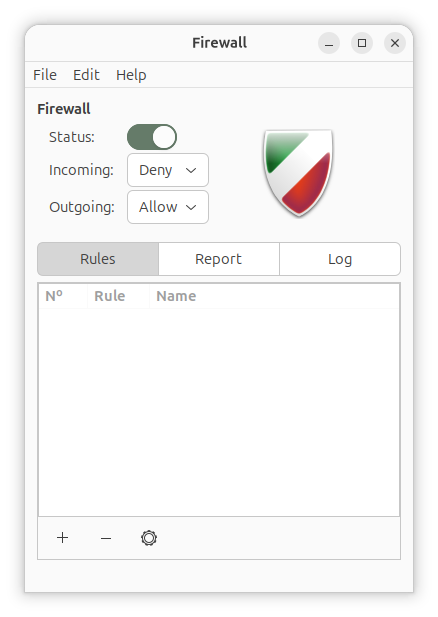
When GUFW opens, you will see the following elements:
| Element | Description |
|---|---|
| Status toggle | Turns the firewall on/off |
| Incoming traffic | Default rule for all incoming traffic |
| Outgoing traffic | Default rule for all outgoing traffic |
| Rules tab | List of all your created rules |
| Report tab | Log of firewall activity |
| Listening tab | Shows active network connections |
6. Enable and Disable the Firewall {#enable-firewall}
Enable GUFW
Simply click the Status slider at the top of the window so that it switches to ON (green). The firewall is now active.
Alternatively, via the terminal:
bash
sudo ufw enableDisable GUFW
Click the same slider to temporarily disable the firewall. This may be necessary when troubleshooting network problems.
bash
sudo ufw disableDefault Firewall Policies
For a personal computer, these default settings are recommended:
- Incoming traffic:
Deny— block all incoming traffic by default - Outgoing traffic:
Allow— allow all outgoing traffic by default
These settings are sufficient for most home users as a starting point.
7. Create Rules in GUFW
This is the core of GUFW’s functionality. Rules determine which traffic is allowed or blocked.
Add a Simple Rule
- Click the “Rules” tab
- Click the “+” button at the bottom left
- Select a rule type: Simple, Advanced, or Preconfigured
Rule Type 1: Simple Rule
The Simple tab is ideal for quick rules based on application name or port number.
Example: Allow SSH (port 22)
- Click “+” → Simple
- Type “ssh” in the search field, or port 22
- Select Allow as the Policy
- Select Incoming as the Direction
- Click Add
Example: Block Telnet (port 23)
- Click “+” → Simple
- Type port 23
- Select Deny as the Policy
- Click Add
Rule Type 2: Advanced Rule
The Advanced tab gives you full control over protocol, IP address, and port range.
Fields in the advanced rule form:
| Field | Description |
|---|---|
| Name | Optional name for your rule |
| Policy | Allow / Deny / Limit / Reject |
| Direction | Incoming / Outgoing / Both |
| Protocol | TCP / UDP / Both |
| From IP | Source IP or network (e.g. 192.168.1.0/24) |
| From Port | Source port |
| To IP | Destination IP |
| To Port | Destination port |
Example: Allow only a specific IP to access SSH
- Policy: Allow
- Direction: Incoming
- Protocol: TCP
- From IP:
192.168.1.100 - To Port:
22
Example: Block all incoming UDP traffic on port 1194 (OpenVPN)
- Policy: Deny
- Direction: Incoming
- Protocol: UDP
- To Port:
1194
Rule Type 3: Preconfigured Rules (From Services)
GUFW includes a library of preconfigured rules for popular services and applications:
- Apache / Nginx (web server)
- Samba (file sharing)
- SSH
- FTP
- Minecraft, Steam (gaming)
- Transmission, qBittorrent (torrents)
- KDE Connect, Syncthing (file sync)
- VNC (remote desktop)
How to add a preconfigured rule:
- Click “+” → Preconfigured
- Use the search field to find the service
- Double-click to add the rule
Manage Existing Rules
| Action | How to Do It |
|---|---|
| Delete a rule | Select the rule → Click the “-” button |
| Edit a rule | Double-click the rule |
| Enable/disable | Check/uncheck the checkbox |
| Change order | Drag and drop the rules |
Important: Rules are processed from top to bottom. Place more specific rules above general ones.
8. Profiles in GUFW
GUFW supports profiles, which allow you to save different firewall configurations for different situations.
Default Profiles
| Profile | Description |
|---|---|
| Home | For home networks — slightly more open |
| Public | For public networks — stricter rules |
| Office | For work networks |
Switch Profile
- Click the profile menu at the top
- Select the desired profile
- Rules adjust automatically
Create a Custom Profile
- Click Profile → New Profile
- Give the profile a name
- Configure your rules
- Save the profile
9. Tips for Personal Users
Here are practical recommendations for the typical Ubuntu home user:
Basic Security Setup
Incoming: Deny
Outgoing: Allow
Recommended Open Ports for Home Users
| Service | Port | Protocol | Recommendation |
|---|---|---|---|
| HTTP | 80 | TCP | Only if you run a web server |
| HTTPS | 443 | TCP | Only if you run a web server |
| SSH | 22 | TCP | Only if you need remote access |
| Samba | 137-139, 445 | TCP/UDP | For local file sharing |
| KDE Connect | 1714-1764 | TCP/UDP | For phone integration |
Good Habits
- Enable the firewall at startup — The firewall starts automatically on boot when you turn it on.
- Review your rules regularly — Delete rules you no longer need.
- Use “Limit” for SSH — This limits brute-force attempts by blocking IPs after too many failed login attempts.
- Check the report tab — Keep an eye on unusual network activity.
- Use profiles — Switch to the Public profile when on a public network.
10. Troubleshooting
GUFW Won’t Open
bash
sudo apt install --reinstall gufwFirewall Not Active After Reboot
bash
sudo systemctl enable ufw
sudo ufw enable
Check Firewall Status in the Terminal
bash
sudo ufw status verboseView UFW Log
bash
sudo tail -f /var/log/ufw.logReset All Rules
bash
sudo ufw resetWarning: This deletes all your created rules and disables the firewall.
11. Conclusion
GUFW makes it easy and straightforward to protect your Ubuntu computer with a powerful firewall — even if you have no technical experience. With just a few clicks you can:
- Enable the firewall
- Block unwanted incoming traffic
- Allow the services you need
- Customize rules for different network environments
Regular maintenance of your firewall rules is a central part of good Linux security practice. Use GUFW as a permanent part of your Ubuntu security setup, and you will have a far more robust system.
FAQ
What is GUFW and what is it used for?
GUFW (Graphical Uncomplicated Firewall) is a graphical user interface for UFW, which is a simplified frontend for Linux’s iptables. GUFW is used to manage incoming and outgoing network traffic on Ubuntu through an intuitive graphical interface. It is ideal for personal users who want easy network security without using the terminal.
Is GUFW installed by default on Ubuntu?
No, GUFW is not installed by default on Ubuntu, but it can easily be installed with the command:
bash
sudo apt install gufw -yUFW (the backend) is, however, pre-installed on most Ubuntu systems.
What is the difference between UFW and GUFW?
UFW (Uncomplicated Firewall) is a command-line tool for managing the Linux iptables firewall. GUFW is the graphical user interface (GUI) for UFW, which makes it possible to manage the firewall through clicks and menus instead of terminal commands. Both control the same underlying firewall.
Do I need a firewall on Ubuntu as a personal user?
Yes, it is recommended. Although Ubuntu by default does not run many exposed services, an active firewall protects you against:
- Unauthorized access to your computer
- Port scanning from malicious actors
- Unintentional data leaks from applications
This is especially important on public networks such as café Wi-Fi or university networks.
How do I enable the GUFW firewall?
Open GUFW from the application menu (search for “Firewall”), enter your password and click the Status slider so that it switches to ON (green).
Alternatively, via the terminal:
bash
sudo ufw enableWhat default settings should I use in GUFW?
For a typical home computer, the following is recommended:
| Traffic Type | Recommended Setting |
|---|---|
| Incoming | Deny |
| Outgoing | Allow |
This means your computer can freely contact the internet, but incoming connection attempts are blocked by default.
How do I create a new rule in GUFW?
- Click the “Rules” tab in GUFW
- Click the “+” button at the bottom left
- Choose a rule type: Simple, Advanced, or Preconfigured
- Specify the policy (Allow/Deny), direction (Incoming/Outgoing) and port or service
- Click Add
What does “Limit” mean in GUFW rules?
Limit is a special policy in GUFW that automatically blocks an IP address if it attempts to connect more than 6 times within 30 seconds. It is very effective for protecting SSH access against brute-force attacks and is recommended for anyone with SSH open.
Does the GUFW firewall stay active after restarting Ubuntu?
Yes. Once the firewall is enabled via GUFW or sudo ufw enable, it remains active across reboots. You can confirm this with:
bash
sudo systemctl status ufwCan I use GUFW and a VPN at the same time?
Yes. GUFW and a VPN work fine side by side. You just need to make sure you are not blocking the ports your VPN uses:
| VPN Protocol | Port |
|---|---|
| OpenVPN | UDP 1194 |
| WireGuard | UDP 51820 |
| Commercial VPNs | TCP/UDP 443 or 1194 |
What happens if I delete a rule in GUFW?
If you delete a rule in GUFW, it is immediately removed from the firewall configuration. Traffic that was previously allowed by that rule will then follow the default policy (typically Deny for incoming traffic). The change does not require a restart.
Can I import and export GUFW rules?
GUFW does not have a direct import/export function in the GUI, but UFW stores its rules in text files under /etc/ufw/. You can back up and restore your rules by copying the files user.rules and user6.rules from this directory:
bash
# Back up rules
sudo cp /etc/ufw/user.rules ~/ufw-rules-backup.rules

# Restore rules
sudo cp ~/ufw-rules-backup.rules /etc/ufw/user.rules
sudo ufw reload
Does GUFW work on all Ubuntu versions?
GUFW is available and supported on:
- Ubuntu 20.04 LTS
- Ubuntu 22.04 LTS
- Ubuntu 24.04 LTS
- Newer non-LTS versions
It works on all Ubuntu variants with a graphical desktop environment, including Kubuntu, Xubuntu, and Lubuntu.
What do I do if GUFW won’t open or work?
Try the following steps in order:
- Reinstall GUFW:
bash
sudo apt install --reinstall gufw- Check that the UFW service is running:
bash
sudo systemctl status ufw- Try starting GUFW directly from the terminal:
bash
sudo gufw- Check for error messages in the system log:
bash
journalctl -xe | grep ufwIs GUFW enough to protect an Ubuntu home computer?
GUFW provides solid basic network protection and is more than sufficient for most home users. For maximum security, you should combine GUFW with:
- Regular system updates (
sudo apt upgrade) - Strong and unique passwords
- Use of HTTPS in the browser
- Optionally an antivirus program such as ClamAV