







How to Disable “System program problem detected” in Ubuntu (Permanent Fix)
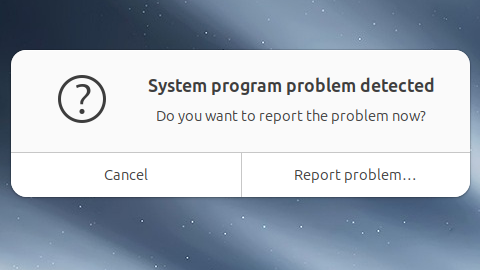
disable system program problem in ubuntu – If you use Ubuntu, you have likely encountered the annoying “System program problem detected” pop-up message right after login or during normal desktop use. While this built-in feature is meant to help developers diagnose software bugs, for most regular desktop users, it quickly becomes an irritating distraction—especially when the warning keeps reappearing even though your operating system works perfectly fine.
In this comprehensive guide, you will learn exactly what this error message means, why it keeps showing up on your screen, and how to safely disable it permanently. Additionally, we will cover how to easily re-enable the service if you ever need crash reporting in the future.
What Does “System Program Problem Detected” Mean in Ubuntu?
This specific warning message is triggered by Apport, which is Ubuntu’s built-in crash reporting tool. Whenever an application or system process crashes in the background, Apport automatically collects diagnostic data and alerts the user so they can file a bug report.
However, the automated tool has a few frustrating quirks:
- Uncleared Logs: Old crash reports are often not cleared automatically from your system storage.
- Login Loops: The warning pop-up may appear on every single login, even if the crash happened days ago.
- Irrelevant Alerts: The original software issue may already have been fixed via system updates, but the old notification remains active.
Because of this behavior, disabling the notification system is one of the most common tweaks for a cleaner Linux desktop experience.
Is It Safe to Disable Apport Crash Reporting?
Yes, for the vast majority of desktop users, it is completely safe to turn off this feature.
⚠️ Important Note: Disabling Apport simply stops Ubuntu from collecting diagnostic logs and sending them to Canonical’s bug tracker. While this is perfectly fine for personal computers, daily drivers, and home media centers, it is not recommended for:
- Production servers running critical enterprise applications.
- Development or beta-testing environments.
- Systems where you are actively trying to debug a specific software crash.
Step-by-Step: How to Disable “System program problem detected” in Ubuntu
This terminal-based method is the cleanest and most effective permanent fix. It works seamlessly on almost all modern Linux distributions, including Ubuntu 18.04, 20.04, 22.04, 24.04, and newer versions.
Step 1: Open the Terminal
You can quickly launch the command line interface by pressing the following keyboard shortcut: Ctrl + Alt + T
Step 2: Open the Apport Configuration File
To change the system behavior, you need to edit the Apport configuration file using the Nano text editor. Execute the following command:
Bash
sudo nano /etc/default/apport
(Note: You will need to type your sudo password to authorize this action).
Step 3: Modify the Activation Line
Look through the file to find the line that dictates whether the service is active. Find this line: enabled=1
Carefully change the value from one to zero: enabled=0
Step 4: Save and Exit Nano
To save your changes and close the editor, use these keyboard shortcuts:
- Press
Ctrl + Oand hitEnterto write the changes. - Press
Ctrl + Xto exit the Nano editor.
Step 5: Stop the Active Apport Service (Optional)
The changes will take effect after your next reboot. If you want to stop the annoying pop-ups immediately without restarting your computer, run this command to stop the background service right now:
Bash
sudo systemctl stop apport.service
The persistent warning message is now permanently disabled on your machine.
How to Enable “System program problem detected” Again
If you ever need to troubleshoot your system or want to help the open-source community by reporting bugs again, you can reverse the process in less than a minute.
- Open the configuration file:Bash
sudo nano /etc/default/apport - Enable the service: Change
enabled=0back toenabled=1. - Save and exit: Press
Ctrl + O(Enter), thenCtrl + X. - Restart the service: Run the following command to activate crash reporting immediately:Bash
sudo systemctl start apport.service
Pro Tip: Clear Old Crash Reports to Free Up Space
Sometimes, residual files left behind in your system directories can cause pop-ups to trigger even after the main service is modified. To ensure a completely fresh start, you can safely wipe out the old log files by running this terminal command:
Bash
sudo rm /var/crash/*
Running this command is completely safe and will not harm your personal data, installed software, or configuration settings.
Expanded FAQ: Troubleshooting Ubuntu Crash Reports
Is disabling Apport a real fix for system crashes?
No, disabling Apport does not fix the underlying software bug or application crash. It simply prevents the system from generating the annoying visual warning dialog box on your desktop.
Will turning off crash reports improve my PC performance?
It will not cause a massive speed boost, but it does reduce background resource usage. When a program crashes, Apport uses CPU power and RAM to generate a memory dump. Disabling it stops this background processing.
Does this solution work on all Ubuntu flavors?
Yes. This method works perfectly on Ubuntu Desktop, Ubuntu Server, and all official flavors such as Kubuntu, Xubuntu, Lubuntu, Ubuntu Budgie, and Ubuntu MATE, as they all share the same underlying base architecture.
Where are the Ubuntu crash reports stored?
All generated crash reports and system dumps are stored in the /var/crash/ directory. You can inspect these files if you want to find out which specific application caused the initial error.
Can I disable crash notifications using a Graphical User Interface (GUI)?
Yes, you can manage diagnostic settings by navigating to Settings -> Privacy -> Diagnostics. From there, you can set “Send error reports to Canonical” to Never. However, the terminal method outlined above is the only way to guarantee the service is completely turned off.
Conclusion
The persistent “System program problem detected” notification in Ubuntu is usually harmless, but it can quickly ruin an otherwise smooth desktop experience. Disabling Apport via the terminal is the quickest, safest, and most effective permanent solution for daily users who just want a distraction-free operating system.
For more Linux tips, terminal guides, and performance tweaks, visit gowithlinux.com