

GParted: The Complete Guide to Disk Partitioning on Linux
GParted disk partitioning Linux – I typically use Gparted with a live USB linux stick. You can create and delete and prepare the computer before installing Linux. See this guide to learn more.
Managing storage space efficiently is crucial for any Linux user. Whether you need to expand a system drive, format an external hard drive, or set up a dual-boot environment, GParted (GNOME Partition Editor) is the go-to tool.
In this complete guide, you will learn how to use GParted for disk partitioning, understand its supported file systems, and discover how to manage your storage devices safely without losing data.
What Is GParted?
GParted is a free, open-source graphical partition manager designed for Linux operating systems. It serves as a visual frontend to underlying command-line disk utilities, making it easy for both beginners and system administrators to modify disk structures without typing complex commands.
By utilizing this Linux disk utility, users gain full control over their Solid State Drives (SSDs), Hard Disk Drives (HDDs), and portable USB storage devices.
What Is GParted Used For?
The GParted application is incredibly versatile and is commonly used for the following disk management tasks:
- Create new disk partitions on unallocated storage space.
- Resize existing partitions to expand or shrink a volume.
- Move partitions across the disk layout to reorganize space.
- Delete partitions that are no longer needed.
- Format disks into various filesystem formats.
- Prepare storage systems for clean dual-boot installations (e.g., Windows and Linux side-by-side).
Supported File Systems
One of the greatest strengths of this partitioning software is its extensive compatibility with both Linux and Windows environments. GParted allows you to perform operations on a wide variety of file systems, including:
- Linux Native:
ext4,ext3,ext2,Btrfs,XFS - Windows Native:
NTFS,FAT32 - Cross-Platform:
exFAT(commonly used for USB flash drives)
Note: Depending on your specific Linux distribution, you may need to install additional packages (such as ntfs-3g or exfatprogs) to enable full read/write support for proprietary file systems.
How to Use GParted (Step-by-Step)
Before modifying any storage device, ensure that no critical partitions are currently mounted or in use by the operating system.
Step 1: Install or Boot GParted
You can install the tool directly from your distribution’s package manager:
Bash
sudo apt install gparted
Alternatively, for modifying root or system partitions, it is best to boot from a GParted Live USB drive.
Step 2: Select the Correct Disk
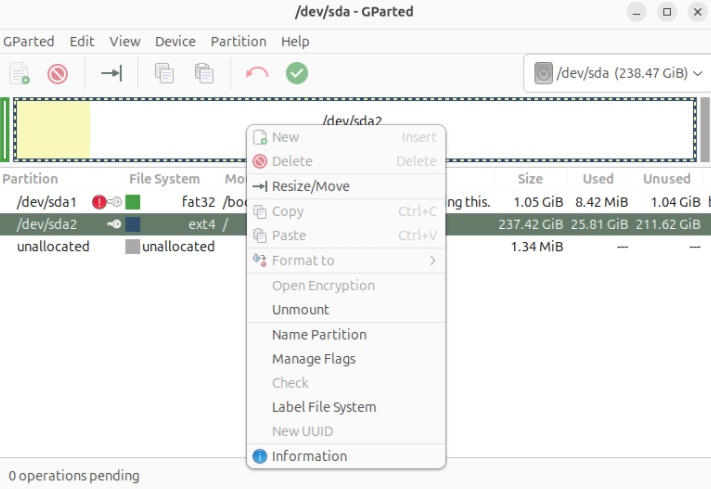
Launch the application and use the dropdown menu in the top-right corner to select your target drive (e.g., /dev/sda or /dev/nvme0n1). Warning: Always double-check the drive size and model to avoid accidental data loss on the wrong disk.
Step 3: Modify and Apply Changes
- Right-click the partition you want to alter.
- Choose your desired action: Resize/Move, Delete, or Format to.
- Once your layout looks correct, click the green checkmark icon (Apply All Operations) in the toolbar to execute the changes.
Is GParted Safe?
Yes, GParted is safe and highly reliable when utilized correctly. It features built-in safety mechanisms that prevent you from accidentally deleting active system partitions. However, modifying a partition table always carries a baseline risk. Creating a comprehensive data backup before applying any changes is strongly recommended.
Pros and Cons of GParted
✅ Pros
- Completely free and open-source software.
- Intuitive and clean graphical user interface (GUI).
- Supports an extensive list of file systems.
- Ideal for comprehensive Linux disk management.
❌ Cons
- Does not include a built-in backup tool.
- Requires a basic understanding of disk structures.
- Data loss can occur if a power failure happens during operation.
Final Thoughts
GParted remains one of the most powerful and trusted disk partitioning tools available for Linux. Whether you are resizing a partition to make room for a new OS or formatting a new backup drive, this utility provides a reliable, visual, and stable solution for all your storage administration needs.
FAQ: Linux Disk Partitioning with GParted
What is GParted?
GParted (GNOME Partition Editor) is a free and open-source graphical tool used to manage, create, resize, and delete disk partitions on Linux systems easily.
Is GParted safe to use?
Yes, it is safe under normal operating conditions. However, because disk partitioning alters the core structure of your drive, you should always back up important files before applying any changes.
Can GParted resize a partition without losing data?
Yes, GParted is specifically designed to shrink or expand partitions without data loss. Despite this, unexpected errors like power cuts can corrupt data, so backups are essential.
What is GParted Live?
GParted Live is a standalone, bootable Linux distribution that runs directly from a USB flash drive. It allows you to modify system partitions that cannot be altered while your main operating system is running.
Can I use GParted on a Windows computer?
GParted cannot be installed directly inside Windows. However, you can use a bootable GParted Live USB to manage Windows partitions like NTFS and FAT32 from outside the Windows OS environment.