


Unlock the Full Potential of Your Chromebook: Install Linux and Flatpak
Install Linux on ChromeOS – Do you own a Chromebook that feels a bit limited? ChromeOS is fast, secure, and excellent for browsing and cloud-based tasks — but it doesn’t have to stop there.
By enabling Linux on your Chromebook, you can turn what many consider a “browser-only device” into a fully capable computer that runs desktop software, development tools, and modern Linux applications.
In this guide, we will show you:
- Why installing Linux is worth it.
- How to enable Linux on a Chromebook (Step-by-step).
- How to install Flatpak and run powerful Linux apps.
Install Linux on ChromeOS?
Many users assume Chromebooks can only run web apps or Play Store applications. In reality, ChromeOS includes a built-in Linux environment (often called Linux development environment or Crostini) that unlocks a huge amount of functionality.
Once enabled, you gain access to:
- Desktop Software: Run full Linux desktop applications similar to those on Windows and macOS, including office suites, graphics tools, and media applications.
- Enhanced Privacy: Use open-source alternatives instead of relying entirely on cloud-based or proprietary software.
- Developer Tools: Install programming languages, code editors, version control systems, and development frameworks — all directly on your Chromebook.
- Lightweight Performance: Linux is efficient and resource-friendly, allowing even modest Chromebook hardware to perform far beyond expectations.
How to Install Linux on Your Chromebook (Step-by-Step)
Google has made Linux support easy and safe to use. You don’t need to overwrite ChromeOS; Linux runs safely alongside it.
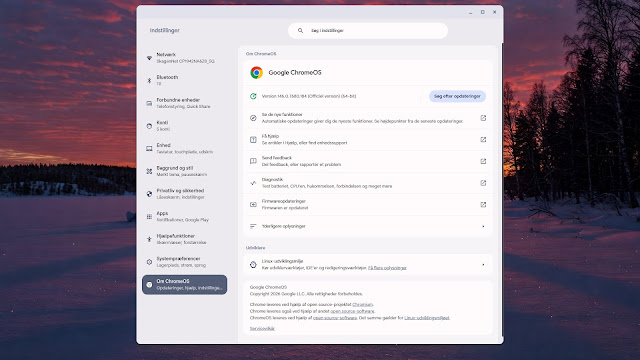
Step 1: Open Settings
- Click the clock in the bottom-right corner of your screen.
- Select the Gear icon (Settings).
Step 2: Go to Advanced Settings
- In the left-hand menu, click Advanced.
- Select Developers.
Step 3: Enable Linux
- Find Linux development environment.
- Click Turn on.
Step 4: Configure Linux
- Choose a username for your Linux environment.
- Allocate disk space (Recommended: at least 10 GB).
Step 5: Finish Installation
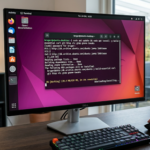
ChromeOS will now download and install the Linux container. After a few minutes, the Linux Terminal will open automatically. This terminal is where you will control and install your Linux software.
See also this youtube video
How to Install Flatpak on a Chromebook
To get the most out of Linux on ChromeOS, using Flatpak is highly recommended. Flatpak is a modern Linux package system that makes installing applications simple, secure, and consistent.
What Is Flatpak?
Flatpak allows applications to run independently of the underlying Linux system. Key benefits include:
- Sandboxed applications (isolated from the rest of the system).
- Improved security.
- Easy, automatic updates.
- Access to a massive app catalog via Flathub.
System Requirements
Before installing Flatpak, make sure you have:
- A Chromebook running ChromeOS 80 or newer.
- Linux environment enabled (from the steps above).
- At least 5 GB of free storage.
- An active internet connection.
Step-by-Step Flatpak Installation
Step 1: Update Your Linux System
Open your Linux terminal and run the following command to ensure everything is up to date:
Bash
sudo apt update && sudo apt upgrade -y
Step 2: Install Flatpak
Install the Flatpak package by running:
Bash
sudo apt install flatpak -y
(Optional) Verify the installation by checking the version:
Bash
flatpak --version
Step 3: Add the Flathub Repository
Flathub is the main app store for Flatpak applications. Add it to your system with this command:
Bash
flatpak --user remote-add --if-not-exists flathub https://dl.flathub.org/repo/flathub.flatpakrepo
Installing and Running Apps Using Flatpak
Now that Flatpak is set up, you can easily install desktop apps.
Example: How to install Firefox:
Bash
flatpak install flathub org.mozilla.firefox
To launch the application from the terminal:
Bash
flatpak run org.mozilla.firefox
Tip: Once installed, Flatpak apps will also appear right inside your regular ChromeOS application drawer alongside your web apps!
How to Update Flatpak Apps
To keep all your installed Flatpak applications updated to their latest versions, simply run:
Bash
flatpak update
Summary: Benefits of Flatpak on ChromeOS
| Benefit | Description |
| Massive Catalog | Access to a wider range of Linux software than the standard repositories. |
| Better Security | Apps run in a safe sandbox, protecting your Chromebook. |
| Always Up-to-Date | Get the latest features without waiting for OS updates. |
| Clean System | Simple and clean installation and uninstallation process. |
See also this youtube video
Conclusion
Installing Linux unlocks the true potential of your Chromebook. Combined with Flatpak, it allows you to run modern desktop applications, development tools, and open-source software — all while keeping ChromeOS fast, secure, and stable.
If your Chromebook feels limited, Linux isn’t a hack or a workaround — it’s the ultimate upgrade that Google built right into the system for power users.
For more guides on Linux, visit the official Flatpak website or stay tuned here on gowithlinux